User manual
Everything you need to get started with STUDIGIT Rechnung, step by step.
1. Getting started
STUDIGIT Rechnung is a web application: all you need is a browser, nothing to install.
- Create an account on rechnung.studigit.com (name, business name, email, password of at least 10 characters).
- Confirm your email address with the link you receive (check spam). Issuing and sending invoices require it.
- Trial: 30 days free with all features, no payment details.
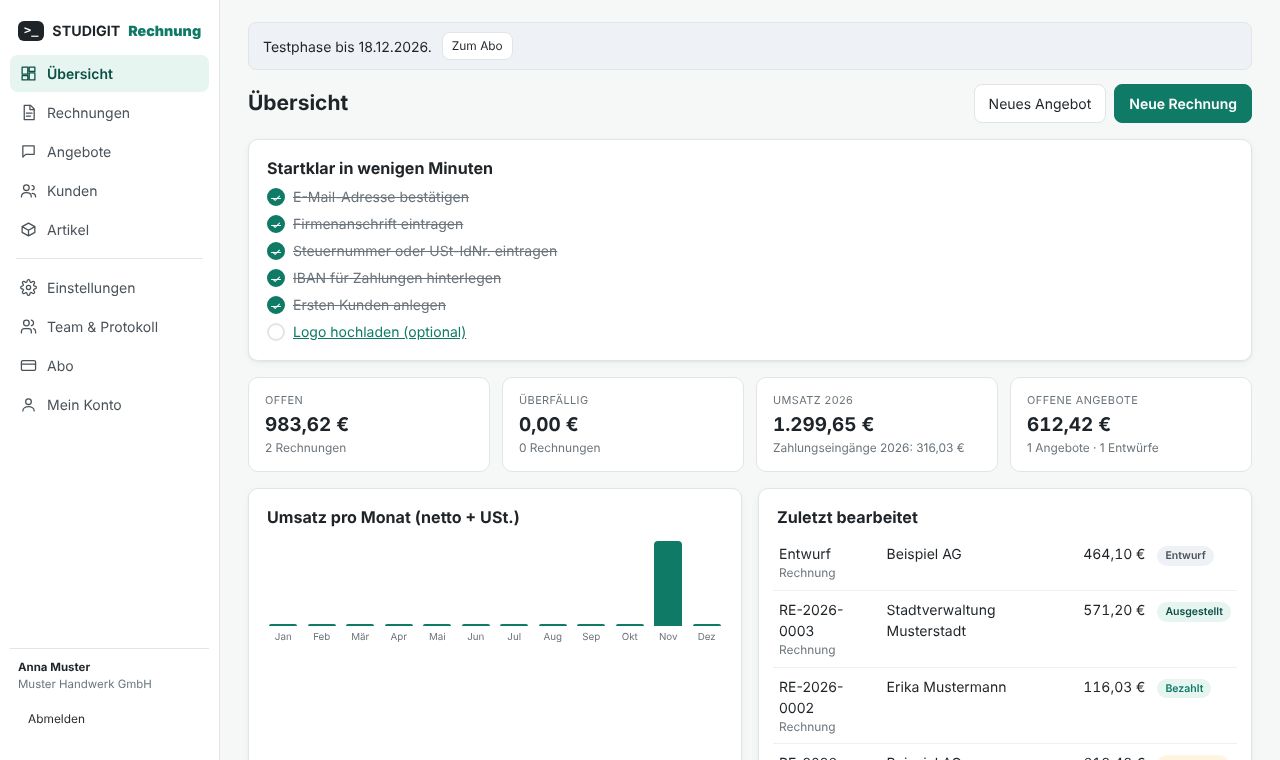
The Overview shows a setup checklist that guides you through the required details.
2. Set up your business
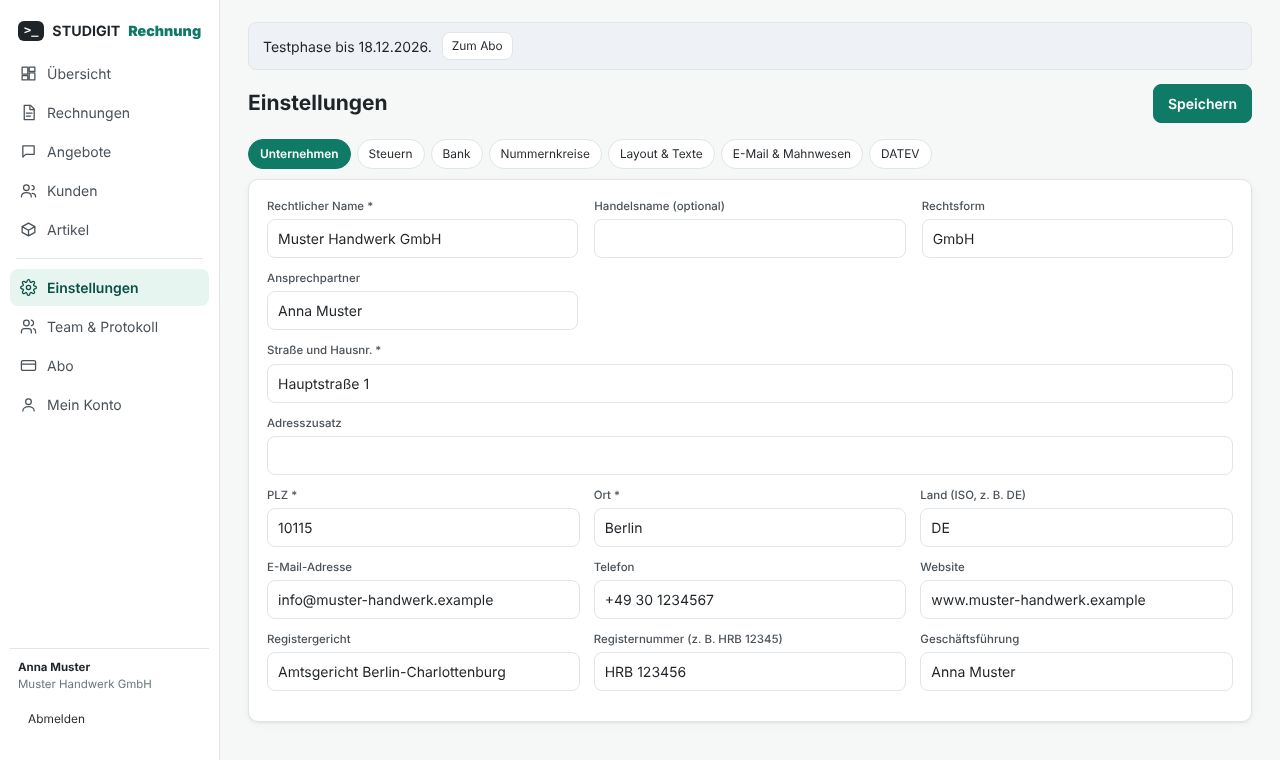
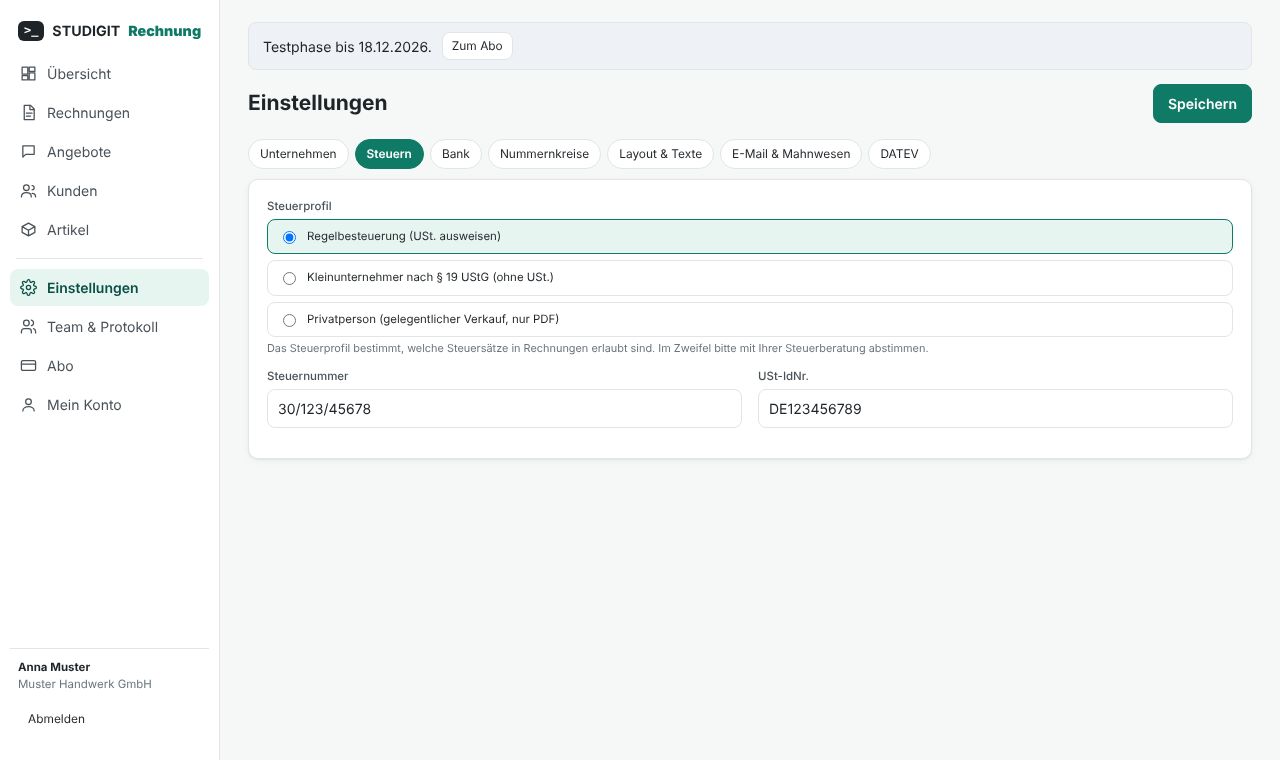
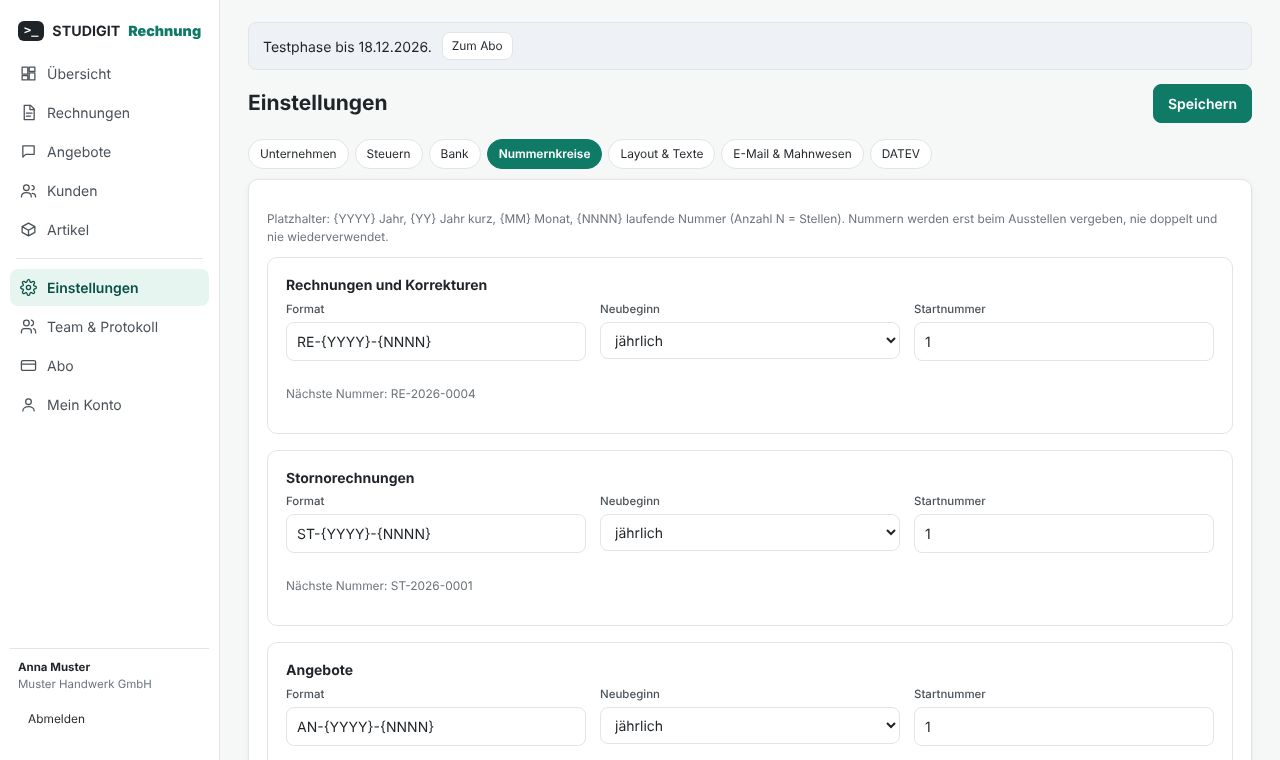
Under Settings (owners only) enter once what must appear on every invoice, then click Save: legal name, legal form, address, contact, register details; your tax profile (standard VAT, small business under § 19 UStG, or private person); your tax number and/or VAT ID (at least one is mandatory); bank details (IBAN is validated); numbering sequences ({YYYY}, {YY}, {MM}, {NNNN}, yearly/monthly/no restart, never duplicated or reused); logo, colour, default format, language, payment term and default texts.
3. Customers
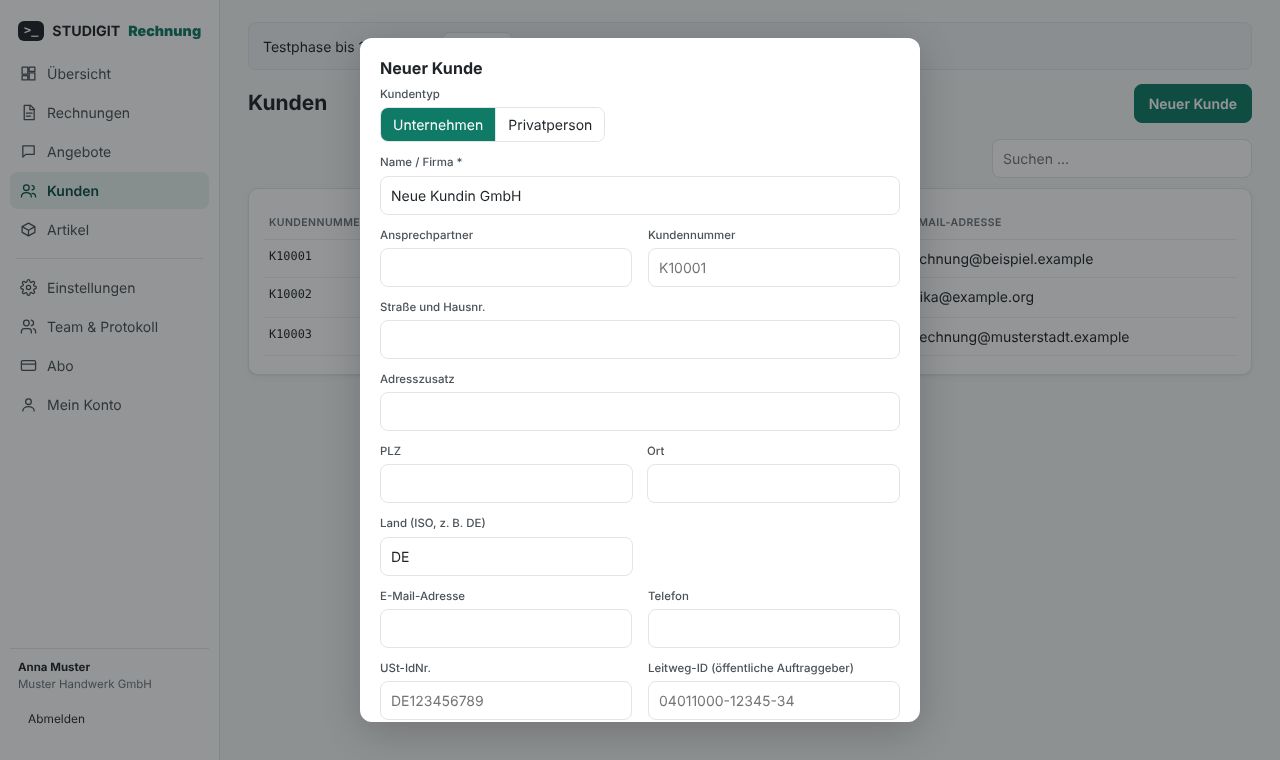
Customers › New customer: business or private person; name and full address are mandatory (country as two-letter code). For businesses: VAT ID (needed for reverse charge and EU supplies), Leitweg-ID for public authorities (XRechnung), separate e-invoice email. Customers with documents are archived, never deleted.
4. Items
Under Items store recurring products and services (description, unit, net price, VAT rate) and insert them in an invoice via "From items …".
5. Quotes
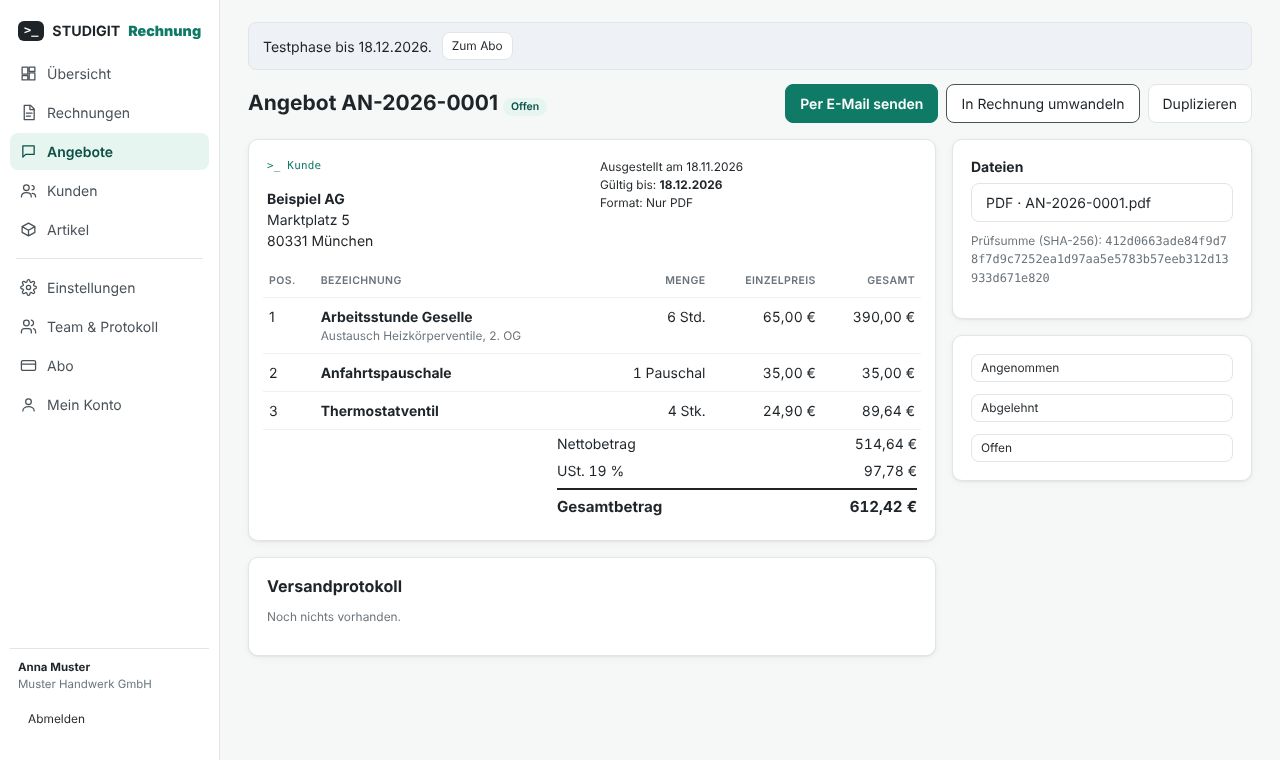
Create a quote like an invoice, issue it (number AN-…), send it, set its status (accepted, declined, open) and convert it into an invoice in one click.
6. Create an invoice
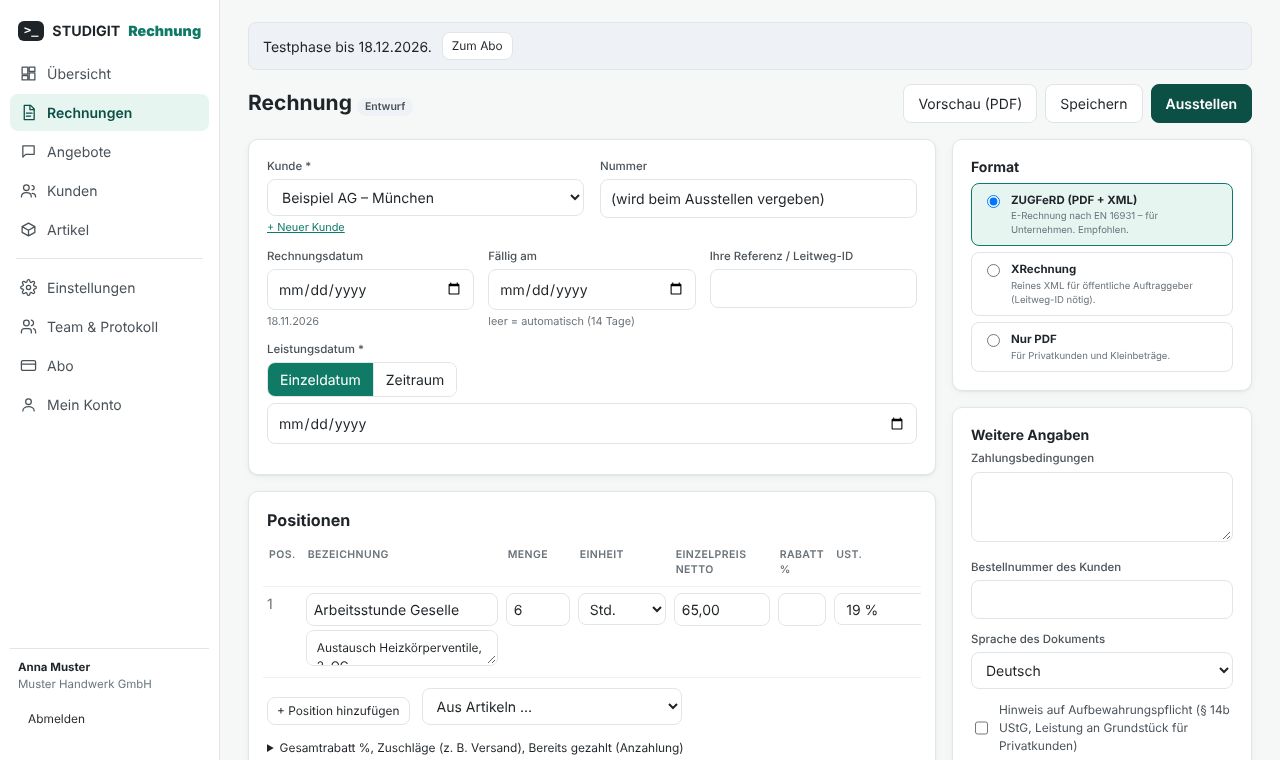
Invoices › New invoice opens a draft (no number yet, freely editable). Choose the customer, invoice date (empty = today), due date (empty = payment term), the mandatory date or period of supply, line items (quantity with up to 4 decimals, unit, net price, discount, VAT rate), overall discount, charges, prepayment, texts, document language and the § 14b UStG notice if needed. Totals update instantly; Preview (PDF) shows a draft copy.
7. GiroCode and early-payment discount
GiroCode: every invoice with an amount due carries an EPC-standard QR code next to the totals. Your customer scans it in their banking app – payee, IBAN, amount and the invoice number as reference are filled in. An IBAN under Settings › Bank is required; switch the code off under Settings › Layout.
Early-payment discount (Skonto): in the editor under More details, enter the percentage (up to 20 %) and period (1–90 days); set a default under Settings › Layout. The PDF shows a clear sentence with date and amount, the XML the machine-readable entry following the XRechnung convention (#SKONTO#TAGE=…#PROZENT=…#). "ohne Abzug" is then removed from the payment terms.
8. Which format?
| Format | Content | For |
|---|---|---|
| ZUGFeRD (recommended) | PDF/A-3 with embedded EN 16931 XML | Business customers |
| XRechnung | Pure XML (3.0) plus PDF copy | Public authorities (Leitweg-ID, contact phone and email, customer email and IBAN required) |
| PDF only | PDF/A-3 without XML | Private customers, small amounts |
9. Check and issue
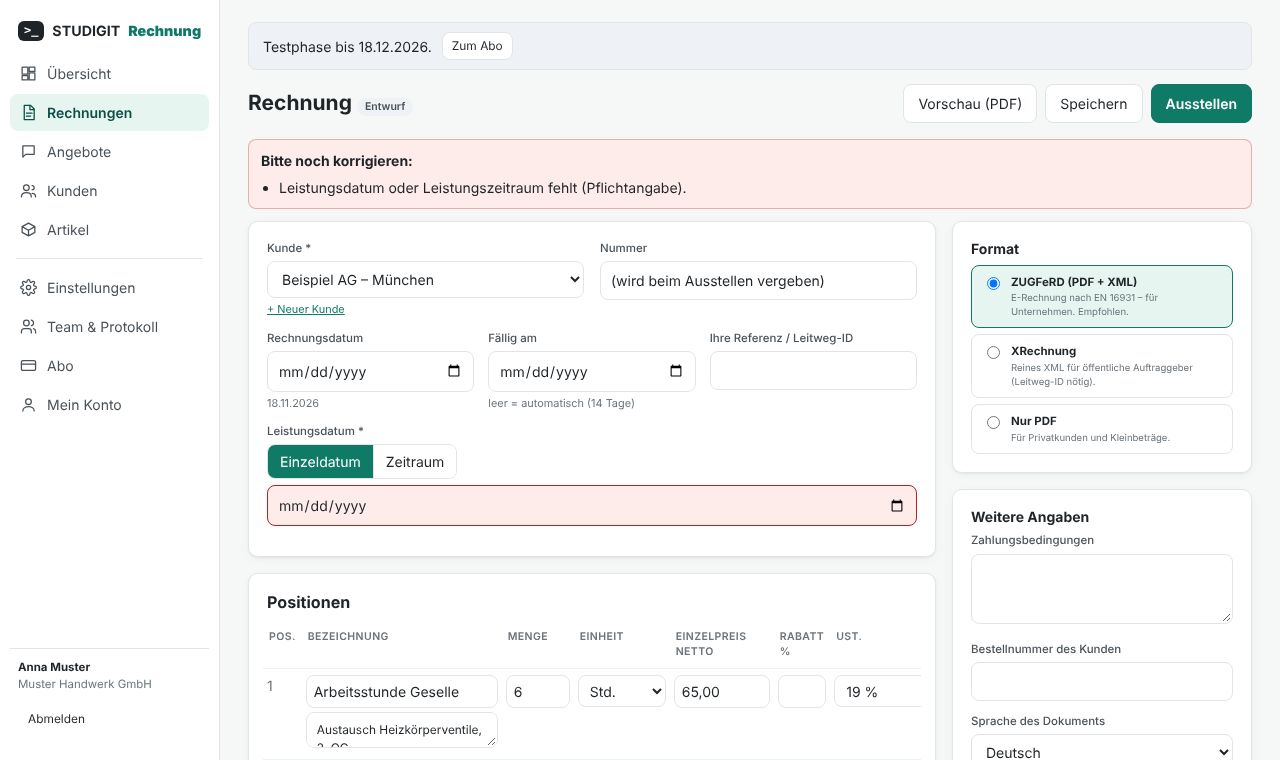
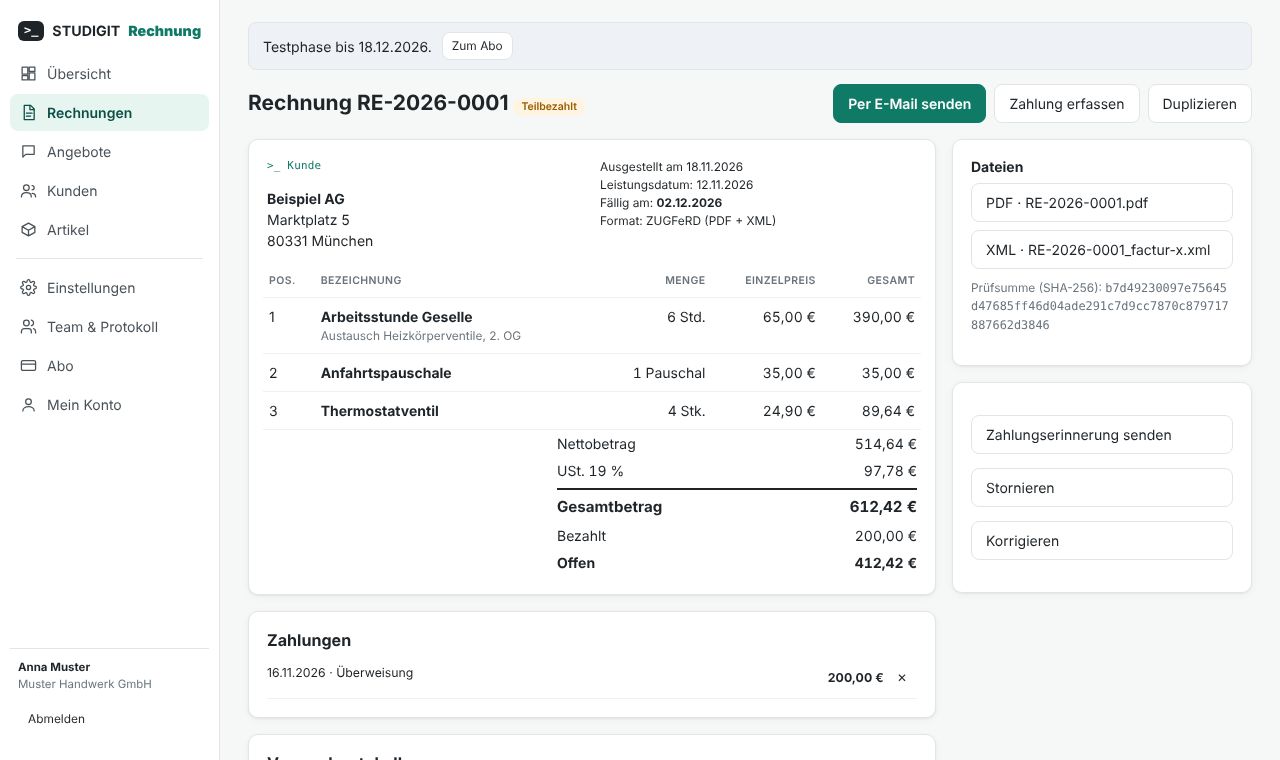
Official check verifies mandatory data and, for e-invoices, the XML against the official rule sets; missing items are listed in plain words and highlighted. Issue assigns the number and creates the final files; if the check fails, nothing is issued and no number is used. Issued documents can no longer be changed or deleted – see Cancel and correct.
10. Send by email
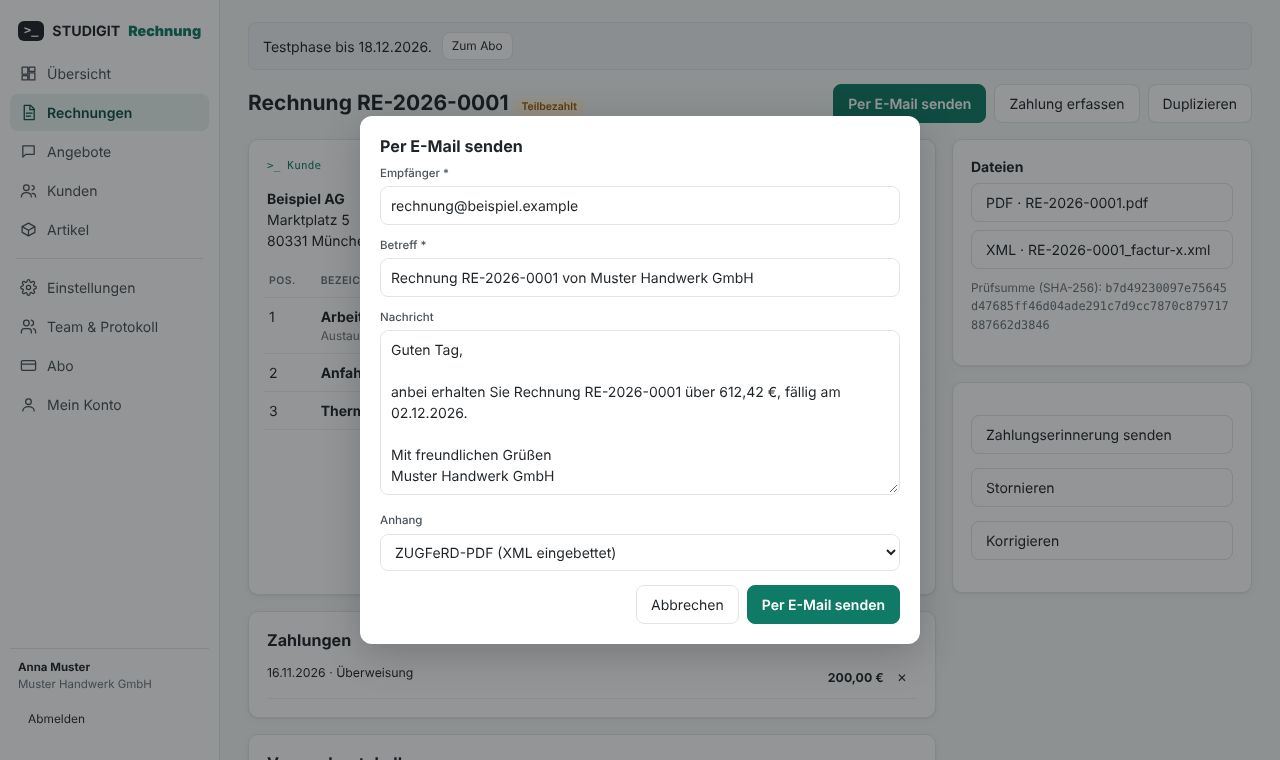
Send by email: recipient, subject, message (from your template) and attachment (ZUGFeRD PDF, PDF + XML, or XML). Replies go to your email address. The delivery log shows date, recipient, attachments and status.
11. Payments and reminders
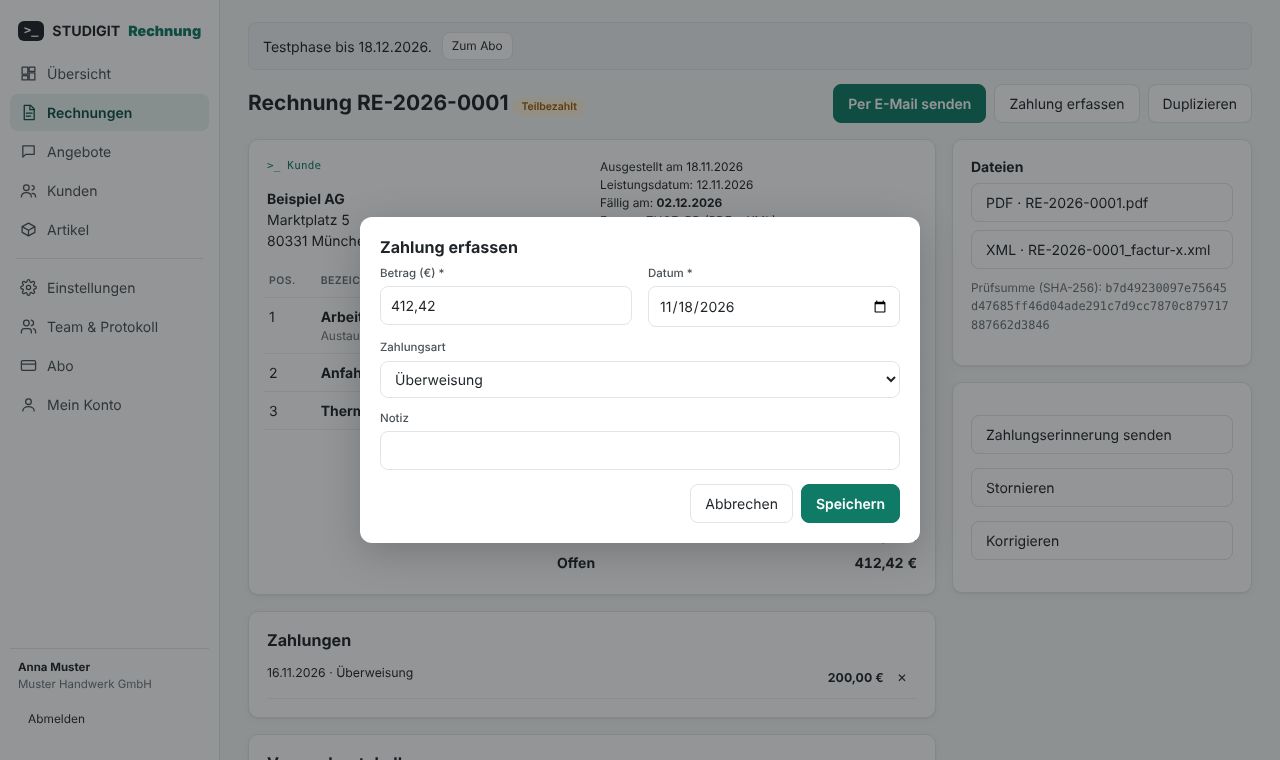
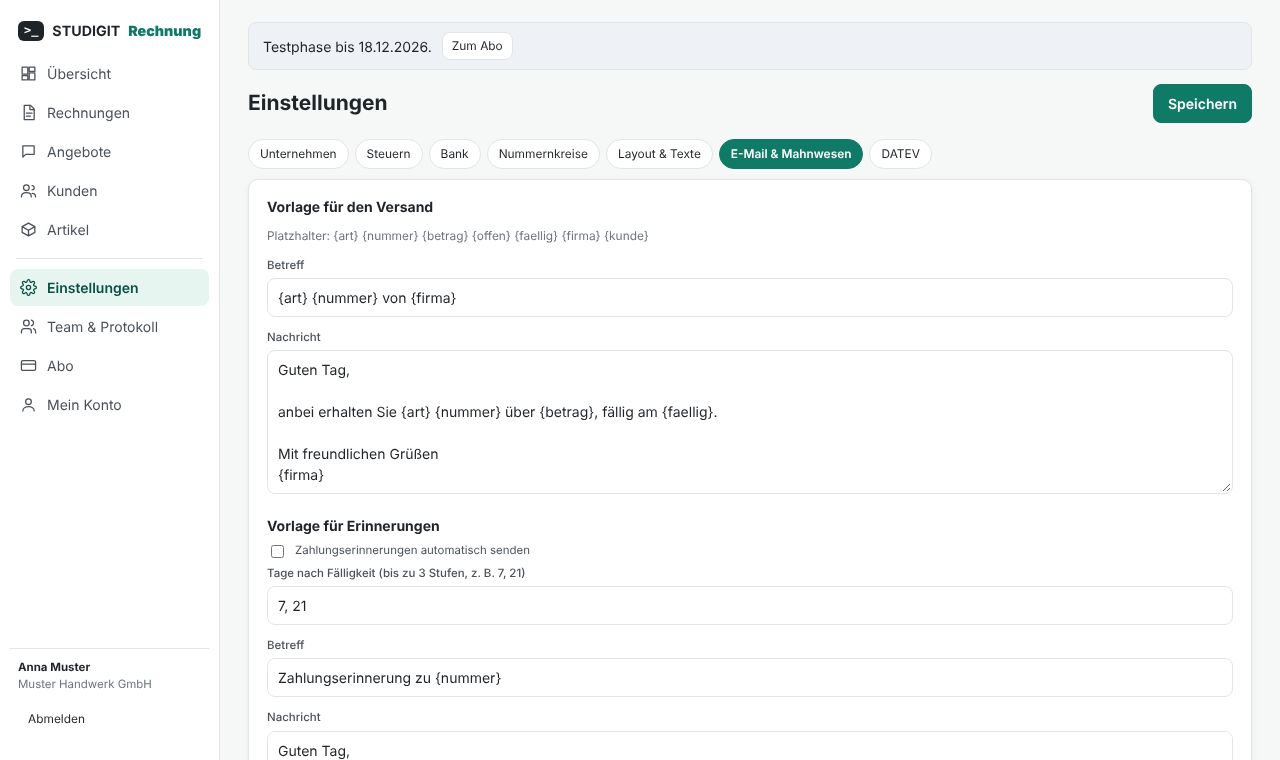
Record payment (amount, date, method): the status moves to partly paid / paid; open invoices past their due date are shown as overdue. Send payment reminder by hand, or enable automatic reminders (up to 3 levels) under Settings › Email & reminders.
12. Cancel and correct
Issued invoices stay archived unchanged. Cancel invoice creates a cancellation invoice (own series ST-…); Correct creates a corrected invoice with a new number replacing the original. Both reference the original, which is marked "corrected".
13. Special tax cases
Per line: 19 % / 7 %, exempt under § 4 UStG (enter the reason), reverse charge § 13b UStG (both VAT IDs required), intra-community supply, export. Small businesses (§ 19 UStG) get the required notice automatically. Please confirm your situation with a tax adviser.
14. Team, roles and log
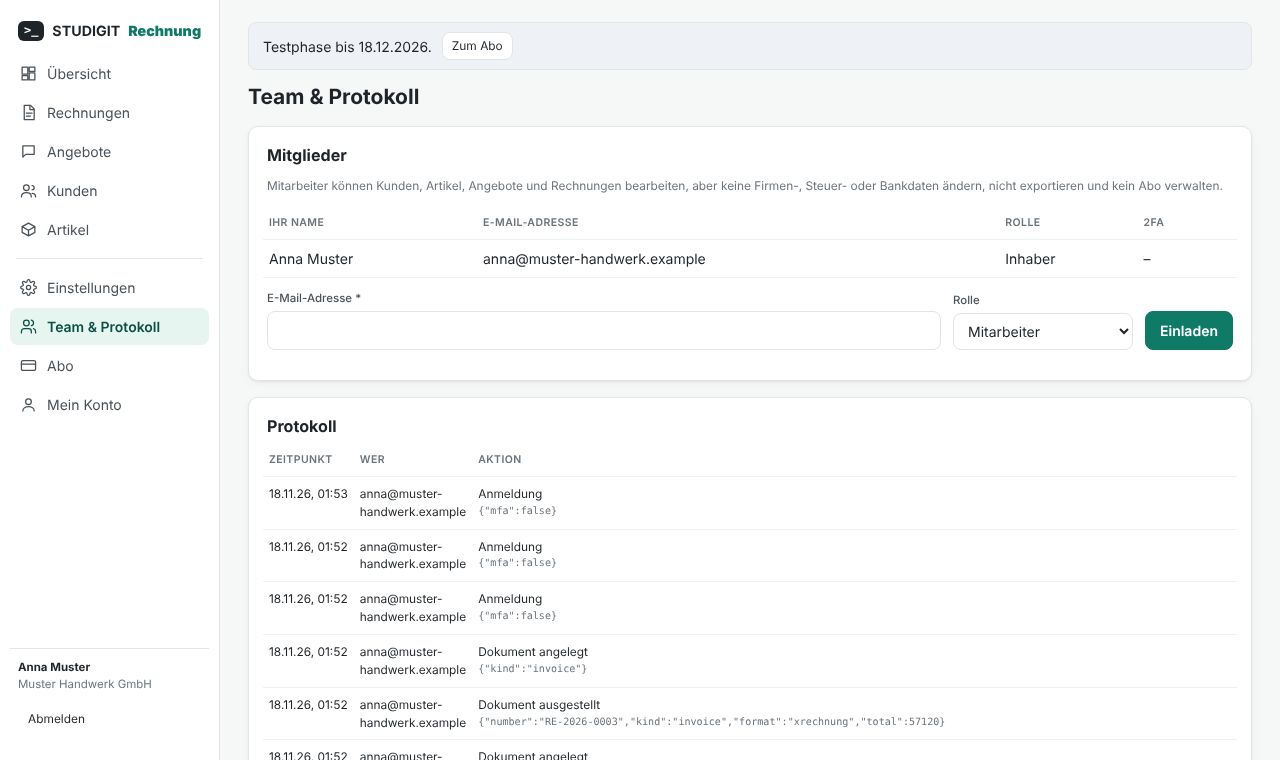
Owners invite people by email as Owner or Employee (no sensitive settings, export or plan management). The log records every action and cannot be changed.
15. Export, archive and DATEV
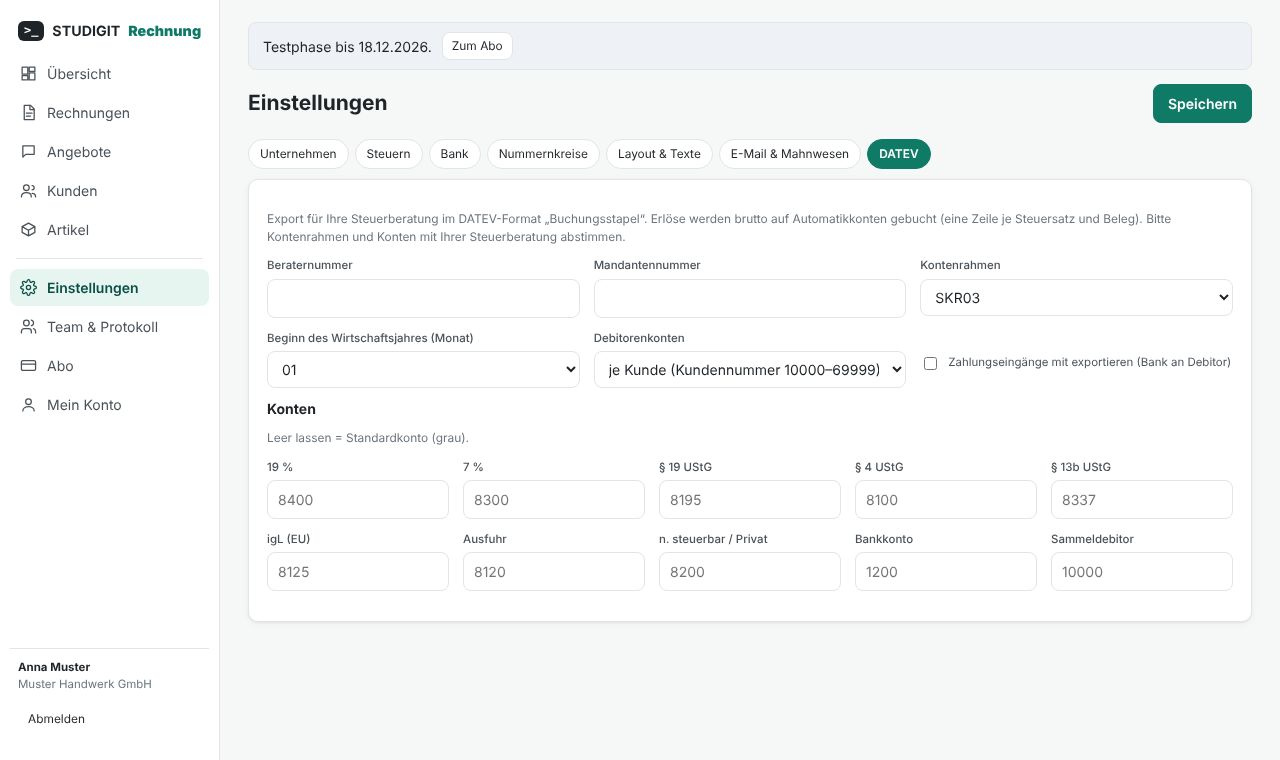
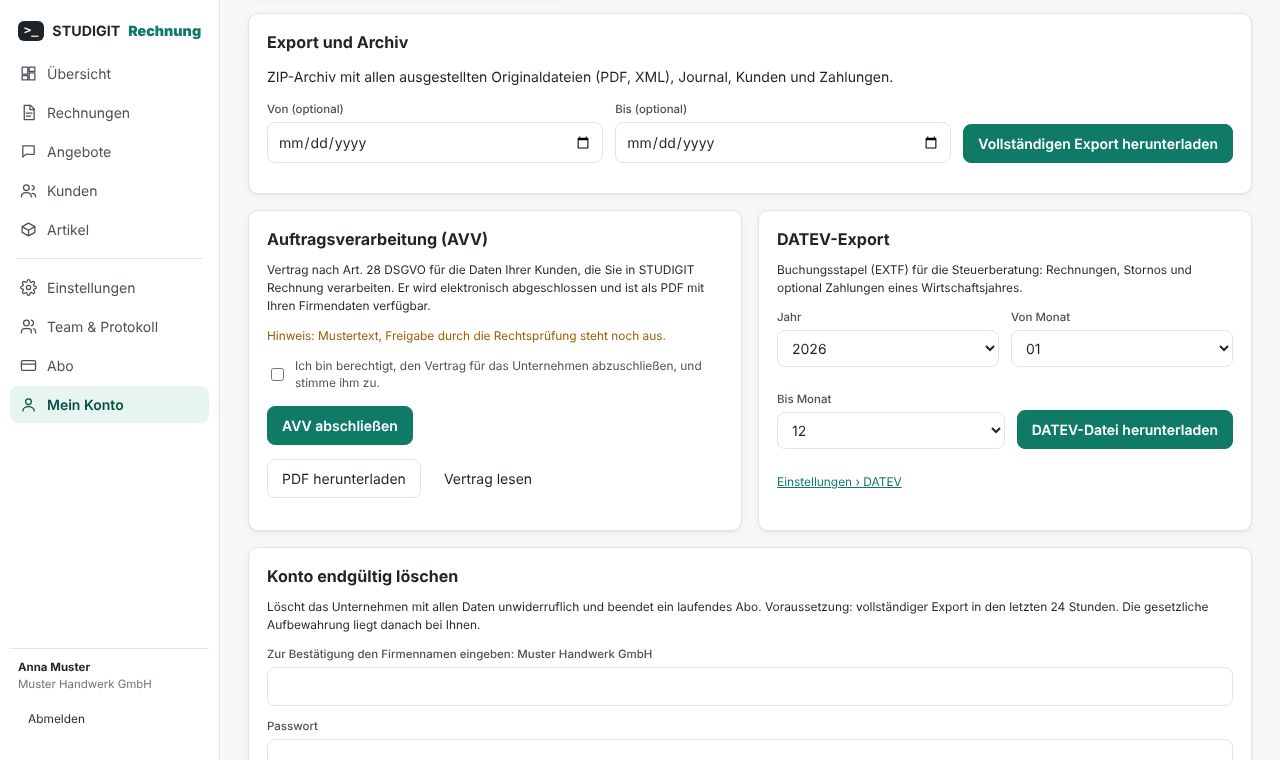
My account › Export and archive: ZIP with all original files, journal, customers and payments. DATEV: enter adviser and client numbers and the chart of accounts (SKR03/SKR04) under Settings › DATEV, then download the booking batch under My account › DATEV export. Confirm the accounts with your tax adviser.
16. Check and read e-invoices you receive
Since 2025 businesses must be able to receive e-invoices. At rechnung.studigit.com/pruefen (also in the menu: Check an e-invoice) upload an XRechnung (CII or UBL) or ZUGFeRD / Factur-X PDF you received. You get the result of the official rules and the invoice in readable form – lines, VAT, bank details, discount – ready to print or forward. The file is not stored. The tool also works without an account.
17. Plan, trial and cancellation
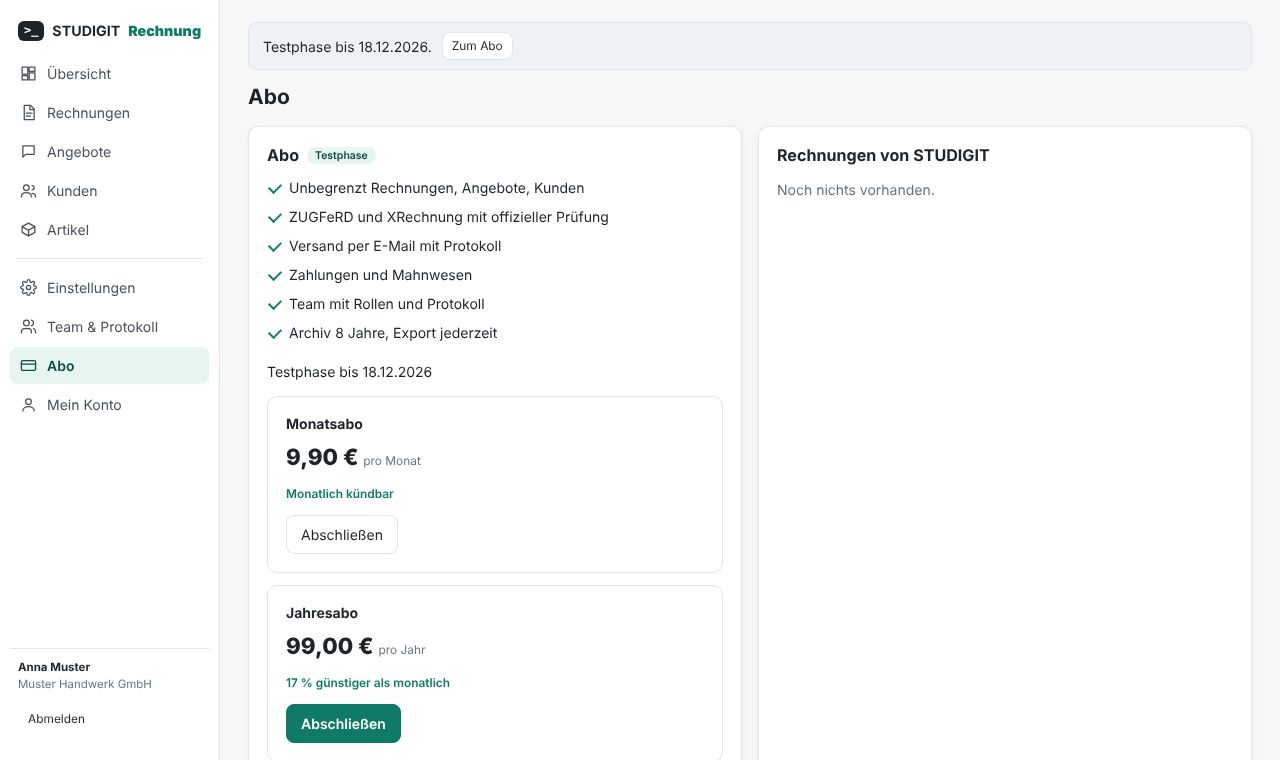
After the 30-day trial choose the monthly plan (cancel any month) or the cheaper annual plan under Plan. Manage plan to change payment method or cancel (effective at the end of the paid term). After a failed payment you keep full access for 14 days, then the account is read-only (documents stay readable and exportable).
18. My account, security and data protection
Profile and interface language, password change, two-factor sign-in with an authenticator app (recommended), signed-in devices, the data processing agreement (AVV, Art. 28 GDPR) concluded in one click and available as PDF, and permanent account deletion after a full export.
19. FAQ
- "Please confirm your email address"
- Use the link in the confirmation email or resend it from the yellow banner.
- "The official check reports …"
- The message names the rule (e.g. [BR-DE-15]); correct and check again. Nothing was issued.
- "Account is read-only"
- Trial or plan has ended: subscribe under Plan; your documents stay readable.
More questions? Write to the email address in the Impressum.